FIA EMI App Not Working? Fixes for Login, OTP, and Verification Problems
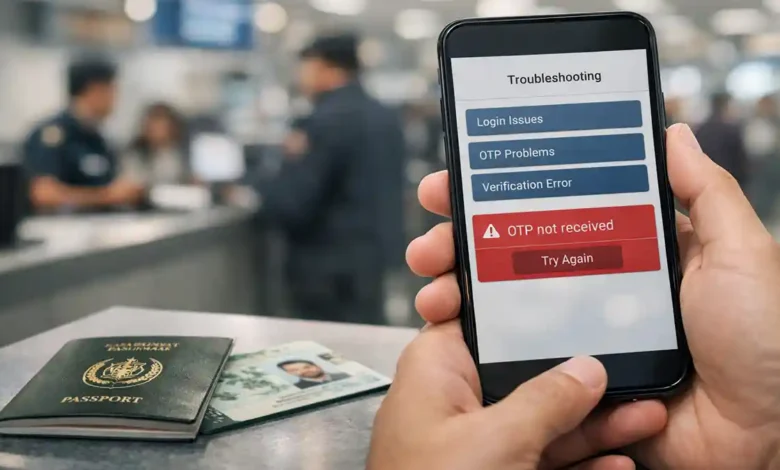
FIA EMI app not working is one of those problems that feels simple (the app is broken) but usually isn’t. What you’re really dealing with is a chain of systems that must all work at the same time: your phone, your SIM network, the SMS OTP gateway, and the app’s verification servers. If any one link weakens even for a minute you can get stuck on login, never receive an OTP, or fail verification despite entering correct details.
This article is a practical, human style troubleshooting playbook. It won’t ask you to repeat the same basic steps endlessly. Instead, you’ll learn how to identify which part is failing (login vs OTP vs verification), apply the right fix in the right order, and avoid the risky shortcuts that cause lockouts and privacy problems.
Quick Diagnosis: Solve the Most Common Issues in 5–10 Minutes
Before diving deep, do these in order. They fix a surprising number of “not working” cases.
1. Restart properly (not just screen off)
- Fully restart the phone.
- Open the app again and try once.
Why it works: restarts reset background services, SMS listeners, and network sessions.
2. Switch your network (Wi-Fi ↔ mobile data)
- If you’re on Wi-Fi, try mobile data.
- If you’re on mobile data, try a stable Wi-Fi or hotspot.
Why it works: OTP and verification calls can fail on certain DNS routes, routers, or congested networks.
3. Set Date & Time to Automatic
- Enable Automatic date/time (network provided).
- Restart again if your time was changed.
Why it works: OTP validation and secure session tokens depend on accurate time.
4. Update the app and your OS
- Update the app from the official store.
- Install pending system updates.
Why it works: older app builds often fail after backend changes; older OS builds can break permissions.
5. Confirm you’re using the correct phone number and SIM
- If your phone is dual SIM, decide which SIM is receiving OTP.
- Set that SIM as default for SMS (temporarily).
Why it works: many OTP failures are dual SIM routing issues.
If you’re still stuck, don’t “spam try” repeatedly. Move to structured troubleshooting below.
Understand the Three Failure Zones (So You Fix the Right Thing)
Zone A: Login failures
Symptoms:
- “Incorrect password” even when correct
- “Account not found”
- Endless spinner after tapping Login
- App closes or resets on login
Typical causes:
- cached tokens or corrupted local data
- network handshake failures
- rate limiting or temporary server load
- wrong ID format
Zone B: OTP failures (delivery + validation)
Symptoms:
- OTP never arrives
- OTP arrives late
- OTP entered but rejected as invalid/expired
- OTP screen loops
Typical causes:
- SMS filtering/spam rules
- roaming restrictions
- dual SIM mismatch
- weak signal or carrier delay
- device time mismatch
Zone C: Verification failures (identity + document checks)
Symptoms:
- “Verification failed”
- “Information mismatch”
- stuck on “processing”
- upload succeeds but verification never completes
Typical causes:
- name spelling differences
- expired documents
- low quality uploads (glare, blur, cropped edges)
- permission issues
- backend queue delays
Now we’ll go deep starting with login.
Part 1: Fix Login Problems Like an Expert
Step 1: Confirm your input format (small errors, big consequences)
Many identity apps are strict. A correct number typed in the wrong format can fail.
Do this:
- Follow the on screen placeholder format exactly.
- Avoid extra spaces and punctuation.
- If the app auto formats fields, don’t fight it.
Common formatting traps:
- CNIC with vs without dashes
- Phone number requiring country code vs local format
- Passport number case sensitivity (some systems treat “ab123” differently than “AB123”)
Step 2: Stop repeated login attempts (avoid lockouts)
If you tried 10 times, your account may be rate limited.
Best practice:
- Try once.
- If it fails, switch network and try once.
- If it fails again, wait 15–30 minutes before trying again.
Why: OTP and auth systems often protect themselves against abuse by limiting attempts.
Step 3: Clear app cache/data (Android) or reinstall cleanly (iPhone)
Login can fail because old session files are corrupted.
Android (recommended order):




- Settings → Apps → (App) → Storage → Clear cache
- If still stuck: Clear storage / Clear data (this resets the app)
iPhone:
- Delete the app
- Restart the phone
- Reinstall from the official store
Tip: After reinstalling, do not restore from a backup snapshot if the app offers an internal restore keep it clean.
Step 4: Password reset do it once, do it correctly
If password reset exists, people often break it by rushing.
Do this:
- Use password reset once.
- Wait for confirmation.
- Set a password you can retype accurately (avoid tricky symbols if the app seems sensitive).
Avoid:
- multiple resets in a row
- switching devices mid reset
- using auto fill that inserts hidden spaces
Step 5: Check device storage and memory (crash on login problem)
Apps that perform verification often need camera and storage access. Low storage can cause:
- app crash at login
- stuck loading after login
- file write failures during verification
Fix:
- Keep at least 1–2 GB free storage
- Close heavy apps running in the background
- Restart and try again
Step 6: Disable VPN / Private DNS / aggressive ad blockers
Many “login not working” cases are network layer issues.
Temporarily turn off:
- VPN
- Private DNS
- network level ad blockers
- corporate Wi-Fi restrictions (if possible)
Then retry on a standard network.
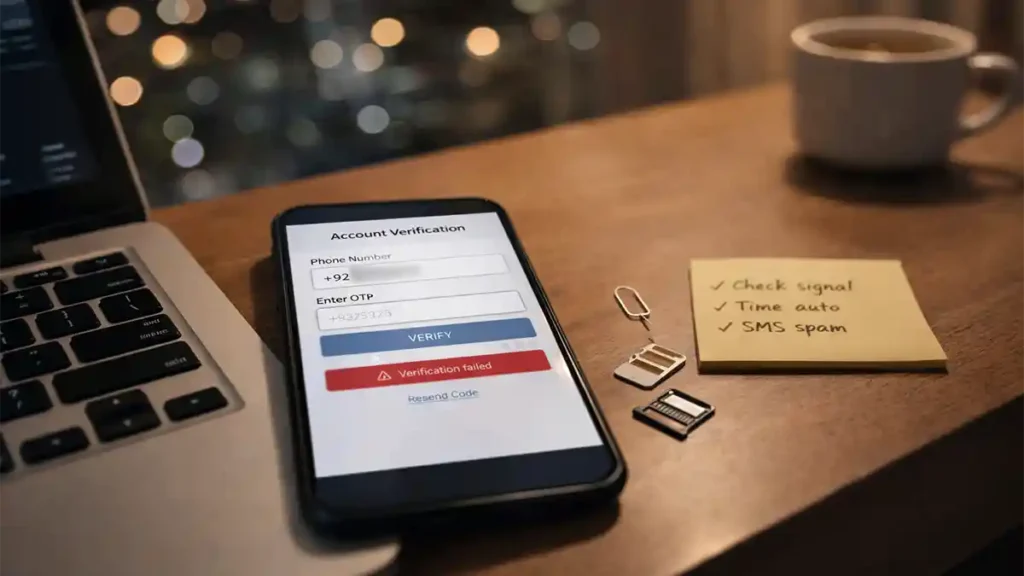
Part 2: OTP Not Received, The Real Reasons and Fixes
OTP delivery is the #1 complaint for identity apps, and it’s rarely solved by reinstalling.
Step 1: Prove your SMS is working (basic test)
Before blaming the app, confirm your number can receive SMS:
- Ask a friend to send a normal text message.
- If that doesn’t arrive, your OTP won’t either.
If SMS is unstable:
- move to a stronger signal area
- toggle Airplane Mode on/off
- restart phone
- consider switching carriers temporarily (hotspot won’t help if SMS itself is failing)
Step 2: Dual SIM phones force the correct SIM for SMS
Dual SIM setups cause OTP failures because:
- the app requests OTP to SIM 1
- your phone’s default SMS SIM is SIM 2
- SMS arrives but auto read fails (or the app listens on the wrong SIM profile)
Fix (temporary for OTP attempt):
- Set the OTP phone number SIM as default for SMS
- Also set it as default for mobile data for the attempt
- Retry OTP once
After verification, you can restore defaults.
Step 3: Check spam and blocked messages (OTP can be filtered silently)
Modern messaging apps often filter unknown senders or automated messages.
Check these folders/settings:
- Spam/Blocked
- Unknown senders
- Filtered messages
On iPhone, “Filter Unknown Senders” can separate messages into a different list. On Android, Google Messages may push OTP into spam if the sender pattern looks suspicious.
Step 4: Turn off Do Not Disturb and notification blocking (so you can see OTP)
OTP can arrive but you never notice it.
Temporarily ensure:
- Do Not Disturb is OFF
- Notifications for Messages are ON
- Notifications for the app are ON
- Lock screen notifications are visible (optional but helpful)
Step 5: Fix delayed OTP (don’t spam requests)
When OTP is delayed, most users keep requesting new codes, which can make things worse.
Better strategy:
- Request OTP once
- Wait 2–3 minutes
- If nothing arrives: switch network (Wi-Fi ↔ mobile data)
- Request OTP one more time
- If still nothing: wait 15–30 minutes (possible carrier delay or rate limit)
Why: repeated requests can trigger anti abuse limits or cause only the newest OTP to remain valid, making older delayed OTP useless.
Step 6: Roaming and international numbers (OTP restrictions)
If you’re outside your home network:
- some carriers block short code/automated SMS
- roaming SMS may be delayed
- OTP gateways may have country specific delivery issues
Fixes to try:
- Enable international roaming for SMS
- Confirm you have roaming balance/activation
- Move to a stronger signal
- Try again during lower network congestion times
Step 7: OTP auto read vs manual entry (permissions matter)
If the app supports OTP auto read:
- it may require SMS permission on Android
- without permission, OTP still arrives but you must enter it manually
Action:
- If you’re comfortable, allow SMS permission only for auto read.
- If you prefer privacy, deny SMS permission and manually enter OTP from your Messages app.
Part 3: OTP Entered but Rejected (Invalid / Expired / Wrong)
If you receive OTP but it fails, focus on timing, duplication, and device time.
1. Use the latest OTP only
If you requested OTP twice, the first one often becomes invalid.
Rule: the newest code usually replaces all previous ones.
2. Fix device time (again this matters a lot)
Even a few minutes off can trigger “expired OTP.”
- Enable automatic time
- Restart
- Request a fresh OTP
3. Avoid typing errors (copy/paste safely)
- Copy the OTP from Messages and paste into the app if allowed.
- If your keyboard has predictions or clipboard managers, ensure it’s not inserting extra spaces.
4. Turn off overlays that interfere with input
Some keyboards, screen filters, and accessibility overlays can cause OTP fields to behave incorrectly.
Temporary test:
- switch to default keyboard
- disable floating widgets/overlays
- retry OTP entry once
Part 4: Verification Failed How to Fix Data Mismatches and Upload Issues
Verification is where most users get frustrated because the error message is vague. Here’s how to troubleshoot it systematically.
Step 1: Make your details match one “source of truth”
If your name spelling differs across documents, automated checks may fail.
Do this:
- Choose the primary identity document the app expects
- Match the spelling exactly (including spacing)
- Avoid titles and extra words
- Keep fields plain (no emojis, no extra punctuation)
Example mismatch patterns that cause failures:
- “Muhammad” vs “Mohammad”
- “Abdul Rehman” vs “Abdur Rehman”
- double surnames with inconsistent spacing
Step 2: Check document expiry and validity
Verification may fail automatically if:
- passport is expired
- CNIC is expired
- document is near expiry under certain policy rules
If your documents are valid, move to upload quality.
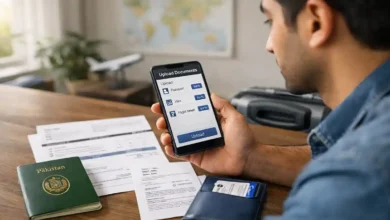
Step 3: Upload quality: treat it like a scanner, not a selfie
Most verification engines don’t “look” like humans. They parse text and patterns. A photo that looks “fine” to you can still fail.
Best photo capture method:
- Use daylight near a window
- Avoid flash glare on glossy pages
- Use a dark background for light documents
- Keep all edges visible
- Tap to focus on text, not the table surface
- Hold steady for 1–2 seconds
Most common upload mistakes:
- glare hiding letters/numbers
- blurred text
- cropped MRZ (machine readable zone) on passport
- shadows across important fields
- screenshots of screenshots (compression kills clarity)
Step 4: File format and size (silent failure zone)
Even if upload appears successful, backend processing can fail if the file is too large or encoded oddly.
Try this:
- Prefer JPEG for photos
- Avoid “Live Photos” formats (convert to standard)
- If the app allows, reduce image size slightly (but keep text readable)
Step 5: Permissions and camera access
Verification steps often require:
- camera permission (capture)
- photo/storage permission (upload)
- sometimes location (policy driven; not always)
If you deny required permissions, the app may loop or fail silently.
Fix:
- Settings → Apps → (App) → Permissions
Enable only what’s needed for the step you’re completing.
Step 6: Background restrictions can stop verification mid process
Android battery optimization can pause uploads and verification checks.
Fix (Android):
- Battery → Battery optimization → set the app to Not optimized temporarily
- Disable “Ultra battery saver” while verifying
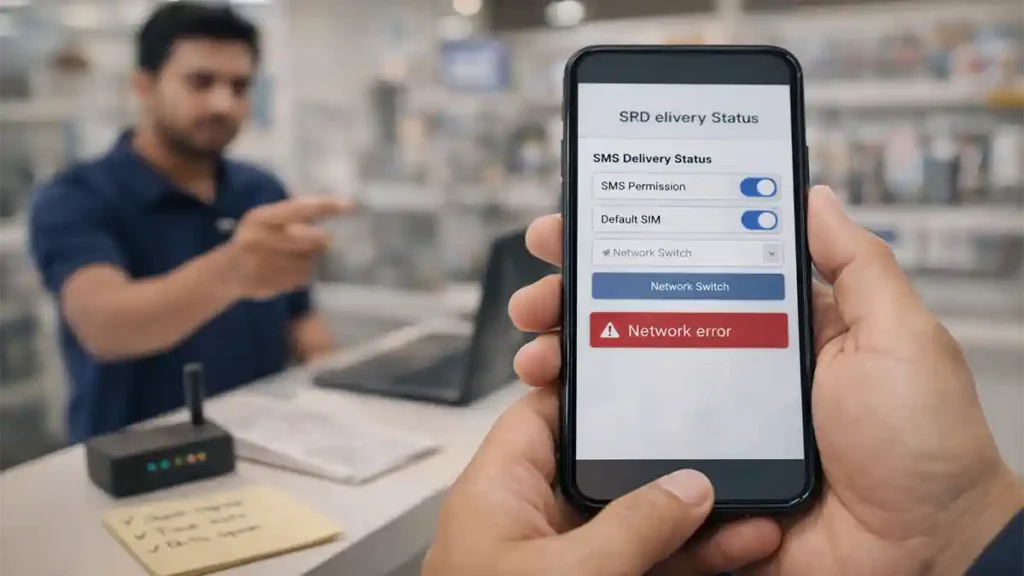
Part 5: App Stuck Loading, Network Errors, and “Something Went Wrong”
These issues are usually caused by unstable connectivity, server load, or blocked network routes.
1. Controlled retry method (prevents lockouts)
Use this sequence instead of random tapping:
- Close the app fully
- Switch network
- Reopen and retry once
- If it fails: restart phone
- Retry once
- If still failing: stop and try later
Why: repeated attempts can trigger rate limits that make the problem last longer.
2. Test on a clean network
If you’re on:
- office Wi-Fi
- a public hotspot
- a router with custom DNS
- a network with content filtering
…try a personal hotspot or standard mobile data.
3. Check storage, RAM, and background apps
If your phone is overloaded, verification screens can freeze.
Fix:
- free up space
- close heavy apps
- restart
4. Disable VPN and private DNS (again)
Network privacy tools are great, but they can break secure API calls used by verification services.
Turn them off for the verification session, then turn them back on afterward.
Part 6: Common Error Messages and What They Usually Mean
These messages vary by version, but the logic is often consistent:
- “OTP not received” → carrier delay, spam filtering, dual SIM routing, weak signal
- “OTP invalid/expired” → phone time mismatch, old OTP used, delayed OTP replaced by a new request
- “Verification failed” → spelling mismatch, document quality issue, expired/invalid document, backend rejection
- “Network error” → unstable connection, blocked DNS/VPN, router restrictions
- “Try again later” → server load, maintenance window, rate limiting
- Stuck on “processing” → upload still running, background restrictions, server queue delay
Treat the message as a clue, not a verdict.
Part 7: High Pressure Scenarios (Airport and Travel Day Fixes)
If you’re troubleshooting while traveling, speed matters. Here’s the shortest path.
Scenario A: OTP not coming at the airport
Airports can have poor cellular reception indoors and Wi Fi that blocks some services.
Fast fix:
- Step near an exit or window for better signal
- Use mobile data (not public Wi Fi)
- Set the OTP SIM as default for SMS
- Request OTP once and wait 2 minutes
Scenario B: Verification failing minutes before departure
Don’t keep retaking low quality photos in bad lighting.
Fast fix:
- Move to brighter light
- Use steady capture, avoid flash glare
- Ensure full edges of the document are visible
- Re-upload only once after improving quality
Scenario C: App won’t open / keeps crashing
Fast fix:
- restart phone
- clear cache (Android) or reinstall (iPhone)
- free up storage
- try on mobile data
If it still crashes, collect evidence and contact official support.
Part 8: Security and Privacy Rules (What Not to Do When You’re Stuck)
When identity apps fail, scams appear fast. Protect yourself.
Don’t do these
- Don’t share OTP with anyone especially “helpers” on social media.
- Don’t pay an “agent” who promises instant verification.
- Don’t install unofficial APKs or “patched” versions.
- Don’t post screenshots showing CNIC/passport numbers.
A common scam pattern is asking you to forward OTP “just to confirm.” That can hand over access to your account.
Do these instead
- Use official support channels only (from official websites or verified government pages).
- If you share screenshots for support, blur sensitive numbers.
- Keep your documents stored safely on your phone.
If anyone asks you to move the conversation to WhatsApp “for faster support,” treat it as a red flag unless you independently verified the number through an official channel.
Part 9: When It’s Time to Contact Official Support
If you’ve done the structured fixes and the problem persists, it may be server side or account specific.
Contact support when:
- OTP never arrives for hours despite signal + SIM checks
- you suspect your account is rate limited or locked
- verification fails repeatedly despite clean, high quality uploads
- the app errors across multiple networks and devices
What to send (to get faster help)
Prepare this before contacting:
- your full name (as per document)
- the phone number used in the app
- CNIC/passport details if requested (share only through official channels)
- exact error message text
- phone model + OS version
- app version
- screenshots with sensitive data blurred
Where to find official contacts
Use the official contact page and official communication channels listed by the FIA. Contact methods can change, so it’s safer to rely on the latest official listing rather than random reposts on social media.
Part 10: Prevention Checklist (So It Doesn’t Break Next Time)
- Keep the app updated (enable auto updates if you trust the store)
- Keep phone date/time automatic
- Avoid ultra battery saver during OTP/verification
- Use one stable SIM for OTP when possible
- Keep clean document photos ready (bright light, full edges, no glare)
- Disable VPN/private DNS temporarily during verification if you face network errors
- Don’t request OTP repeatedly use controlled retries
Quick FAQ
Why is my FIA EMI app not working even after reinstalling?
Reinstalling fixes corrupted local files, but it won’t solve carrier SMS delays, dual SIM routing, time mismatch, or server side rate limits. Diagnose the failure zone first (login vs OTP vs verification).
What should I do first if OTP is not received?
Confirm SMS works, switch network, set the OTP SIM as default for SMS, check spam/blocked folders, and request OTP once. Avoid repeated requests that can trigger limits.
Why does OTP say “invalid” even though it arrived?
Usually you entered an older code after requesting a new one, your phone time is inaccurate, or the OTP arrived late and expired. Use the latest OTP and enable automatic time.
What does “verification failed” normally mean?
Most commonly: spelling mismatch across documents, expired/invalid document, or low-quality upload (glare, blur, cropped edges). Improve capture quality and match details exactly.
Can VPN or private DNS cause login or verification errors?
Yes. VPN/private DNS/ad blockers can interfere with secure API calls. Turn them off temporarily, verify successfully, then re-enable them afterward.
I’m on dual SIM. How do I stop OTP confusion?
Temporarily set the OTP SIM as the default for SMS (and ideally mobile data during the attempt). Then retry once. After verification, switch back to your preferred SIM settings.
Is it safe to share OTP with someone claiming to be support?
No. OTP is a security credential. Sharing it can allow account takeover. Only follow guidance through official channels you verified yourself.
When should I stop troubleshooting and contact support?
If the problem persists across networks, after clean reinstall and correct permissions, or if you suspect lockout/rate limits, contact official support with the exact error and blurred screenshots.
Conclusion
When the app fails, most people do the same unhelpful loop: request OTP repeatedly, reinstall repeatedly, and panic tap until they’re locked out. A calmer, structured method fixes the majority of issues:
- Login problems → clean app data, correct formatting, stable network
- OTP issues → SIM defaults, SMS filtering, signal strength, time sync
- Verification failures → consistent identity details, high quality uploads, correct permissions
If none of that works, it’s likely not “your phone.” Gather clean evidence, use official support channels, and avoid risky shortcuts. That approach saves time, protects your data, and gets you to a real resolution faster.