Is the FIA EMI App Safe? Privacy, Permissions & Data Use
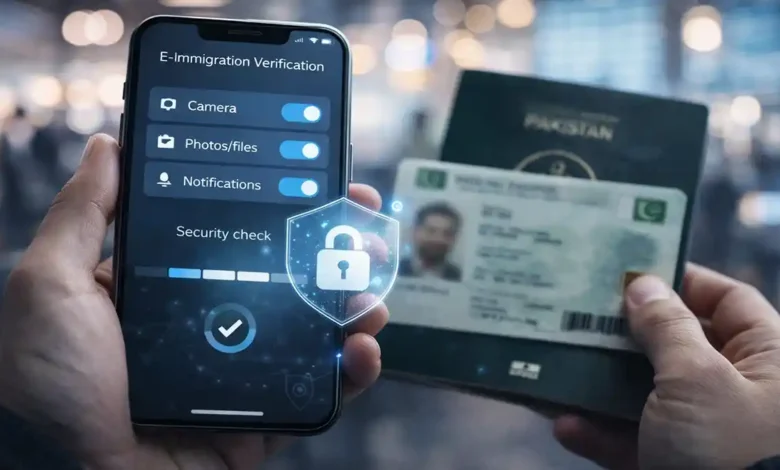
FIA EMI App safety is not a small question, because immigration apps sit in a high trust zone: they often handle identity documents, travel plans, and verification steps that can affect whether you board a flight smoothly. When an app asks for passport information, visa details, or document uploads, it is normal to pause and ask: Is this safe, and what exactly happens to my data?
This deep dive gives you a clear, real world framework to evaluate safety without fear mongering or technical overload. We will cover what “safe” means in an immigration context, what data an e-immigration workflow typically uses, which permissions are reasonable, what red flags should make you stop, and the exact steps you can take to protect your passport, CNIC, and travel information.
Note: Here “FIA” refers to the Federal Investigation Agency (Pakistan), not any other organization with a similar acronym.
Quick takeaways
- “Safe” has two layers: official (the real app) and secure (data protected properly). You need both.
- Immigration apps commonly use identity data (passport/CNIC), travel details (flight, destination), and supporting documents (visa, tickets, letters) to verify travellers.
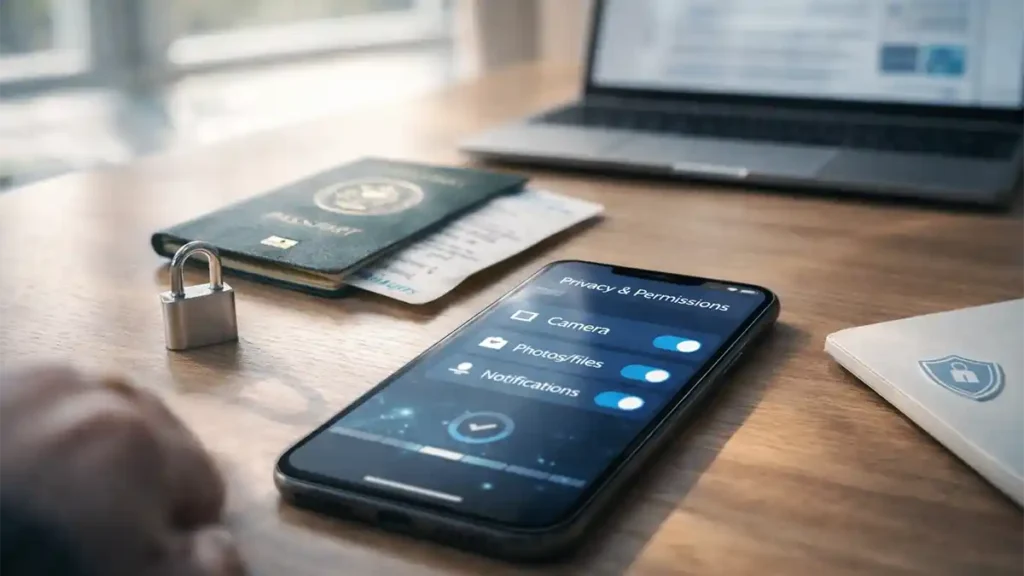
- Normal permissions usually include camera (scanning), photos/files (uploads), network (submission), and sometimes notifications (status updates).
- Suspicious permissions typically include contacts, microphone, and always on location (unless a feature clearly requires it).
- The most common risk is not a “movie hack.” It is fake apps, phishing links, and oversharing documents under pressure.
- A simple checklist official download, strict permissions, secure internet, and document hygiene reduces risk dramatically.
(1) What the FIA EMI app is trying to do, in plain terms
E-immigration apps are designed to move part of the immigration workflow from the counter to your phone. Instead of doing everything at the airport, travellers can submit key information earlier, and officials can review or validate it more efficiently. That may mean:
- creating a traveller profile,
- entering passport and travel details,
- uploading supporting documents,
- receiving a clearance status or reference number,
- or completing steps that reduce time at the airport.
Whether the app is optional or required can depend on policy, rollout phase, route, and airport procedures. The important point is this: because the app is connected to identity and border screening processes, the data involved is inherently sensitive.
(2) What safe really means: three different questions people mix together
When someone says, Is this app safe? they often mean one of these:
(A) Is it official?
This is about authenticity.
- Is it the legitimate app published through trusted distribution channels?
- Is the developer identity credible?
- Does it match official government communications and branding?
If the app is not official, nothing else matters because a fake app can steal your documents instantly.
(B) Is it secure?
This is about protection.
A secure app typically uses:
- encryption when data moves between your phone and servers,
- secure authentication and session controls,
- protection against tampering and suspicious activity,
- secure server storage, access controls, and monitoring,
- regular updates to patch vulnerabilities.
(C) Is it privacy respecting?
This is about proportionality and transparency.
A privacy respecting app should:
- collect only what is necessary for the stated purpose,
- explain what it collects and why,
- keep data only as long as needed (retention),
- limit sharing to required government functions and vetted service providers,
- provide a contact mechanism for questions or corrections.
In a border/immigration scenario, “privacy respecting” does not mean “collects nothing.” It means collects what is justified, and protects it well.
(3) What data the FIA EMI app likely uses ‘and why’
Even if you never read a privacy policy, you can still understand the data in three buckets. This will help you judge permissions and risk.
3.1 Data you actively provide (most sensitive)
This is the information you type or upload:
- Basic identity details: full name, date of birth, nationality.
- Passport information: passport number, expiry date, issuing country, and often a passport scan.
- CNIC or national ID (where applicable): sometimes required to match records.
- Travel details: destination country, flight number, departure airport, travel dates.
- Visa details: visa number/type, validity, or proof of visa for certain routes.
- Purpose of travel: tourism, study, work, visit, business.
- Supporting documents: tickets, visas, invitation letters, admission letters, employment proof, or other documents depending on your travel category.
Why this matters: Passport images and visa documents are high value targets. If leaked or stolen, they can enable identity fraud, travel scams, or targeted phishing.
3.2 Data created by your activity (less personal, still important)
Most apps generate operational data such as:
- submission timestamps,
- verification status logs,
- error reports (for failed uploads),
- app version and device model (for troubleshooting and fraud detection),
- session IDs or device identifiers used to prevent abuse.
Why this matters: While these logs are not as sensitive as your passport, they can still reveal patterns about your travel activity and device.
3.3 Data the broader immigration ecosystem may connect (contextual)
Border systems often cross check submitted information against:
- watchlists or alert systems,
- prior travel history entries,
- airline passenger data used for screening (depending on policy),
- and internal government databases.
You do not need to know the technical names of these systems to be cautious. The practical takeaway is simple: your app submission can become part of a wider verification picture. That increases the importance of authenticity and secure handling.
(4) Permissions: what is normal, what is suspicious, and how to think about it
Permissions should be evaluated using one rule:
If you can’t connect the permission to a clear feature, treat it as unnecessary until proven otherwise.
4.1 Permissions that are commonly reasonable
Camera
Why it can be reasonable: scanning a passport page, capturing document photos, scanning a QR code.
Safer setting: “Allow only while using the app.”
Photos / Files
Why it can be reasonable: selecting documents to upload.
Safer setting: choose “Selected photos/files” if your phone offers it, or allow temporarily and revoke after upload.



Internet / Network access
Why it is necessary: submissions and status checks require server communication.
Notifications (optional)
Why it can be helpful: updates like “submitted,” “approved,” “additional info needed.”
Safer setting: optional turn off if you prefer checking manually.
4.2 Permissions that should trigger caution
These are not automatically malicious, but they are unusual for an immigration verification flow:
Contacts
An immigration app typically does not need your contact list.
Microphone
Rarely required. If an app claims it needs microphone access, it should clearly explain why.
Always on location
Location can sometimes be justified for a specific feature, but “always allow” is usually excessive unless there is a very clear reason.
SMS (beyond OTP convenience)
Some apps request access to read a one time password automatically. That can be a convenience feature, not a requirement. If you feel uneasy, you can usually enter OTP manually.
(5) How to verify the app is official (this is the step most people skip)
Most travellers worry about “data collection,” but the most common real world problem is installing the wrong app.
Use this verification approach:
5.1 Download only from official stores
Use the official store on your phone:
- Google Play Store for Android
- Apple App Store for iPhone
Avoid APK downloads from random websites, Telegram channels, or “someone sent me the link” messages.
5.2 Check the developer identity
Look for:
- a credible developer name connected to a government entity or an official contractor,
- a proper developer website,
- a privacy policy link that looks professional (not a blank page),
- consistent branding and spelling.
5.3 Compare with official communications
If government agencies or official airport channels announce app details, match:
- app name,
- logo/icon,
- screenshots,
- and any stated contact/support channel.
5.4 Review update history and ratings with common sense
Don’t overtrust ratings. Instead:
- check whether the app is actively maintained,
- scan recent reviews for repeated issues (crashes, login failures, suspicious behavior),
- watch for patterns that look like paid reviews.
If something feels off, stop. A short delay is safer than uploading your passport into a fake app.
(6) How to read privacy policies and store data safety labels like a professional
Most people either ignore these sections or assume they are legal noise. You only need a few key checkpoints.
6.1 What to look for in the store privacy summary
Store listings often summarize:
- what data is collected,
- what data is shared,
- whether data is encrypted in transit,
- whether you can request deletion.
Treat these labels as helpful signals, not as proof of a security audit.
6.2 What a good privacy policy should clearly explain
Scan for answers to these questions:
- What data is collected?
Passport details, travel details, uploads, device logs, identifiers. - Why is it collected?
Verification, screening, fraud prevention, compliance, service improvement. - Who receives it?
Relevant government departments, vetted service providers, and sometimes connected border systems. - How long is it kept?
Retention period should be explained clearly. - How is it protected?
Encryption, access controls, monitoring, audits. - Can you correct errors?
Procedure for correcting wrong data matters, because immigration data mistakes can create real travel issues. - Who do you contact?
A real support channel reduces confusion and scam exposure.
If a policy is vague or missing obvious basics, that does not automatically mean the app is unsafe but it does mean you should be more careful with permissions and where you upload from.
(7) The reality of privacy and law: what travellers should understand
In many countries, data protection is governed by a single, mature framework. In other places, privacy protections may be spread across multiple instruments, policies, and sector specific rules.
For a traveller, the practical message is:
- Your safety does not come only from regulations.
- Your safety comes from verification, secure behavior, and strong operational controls.
So instead of relying on “it must be safe because it’s official,” use controlled trust:
- verify the app,
- reduce permissions,
- upload only what’s required,
- keep your device secure.
(8) Realistic risk analysis: what can actually go wrong?
Let’s rank risks from most common to least common.
8.1 Fake apps and look alikes (most common)
Scammers clone branding and create:
- fake store listings,
- fake “download pages,”
- or “latest version” links on social platforms.
Impact: instant theft of passport images and personal details.
8.2 Phishing and “re-verification” scams
Attackers send messages like:
- “Your EMI status failed, click here.”
- “Upload your documents again.”
- “Pay a fee to verify.”
Impact: you hand over documents outside official channels.
8.3 Weak phone security
If your phone is:
- outdated,
- filled with risky apps,
- or rooted/jailbroken,
you increase the risk of malware and data exposure.
8.4 Insecure networks
Public Wi-Fi adds exposure to:
- fake portals,
- traffic manipulation attempts,
- and malicious pop ups.
Even if encryption protects the submission, the environment is still riskier than trusted internet.
8.5 Oversharing “just in case”
Travellers sometimes upload extra documents “to be safe.” That increases risk without improving verification.
Rule: upload only what is requested.
(9) A strong safety checklist before you install the app
Step 1: Update your phone
- install OS updates,
- update your browser,
- update the app store.
Step 2: Clean your device environment
- remove suspicious apps,
- avoid unofficial VPNs or “free security boosters,”
- ensure you have a screen lock (PIN/biometrics).
Step 3: Install from the official store only
No APK links, no random downloads.
Step 4: Check permissions immediately after install
Before signup:
- view requested permissions,
- set camera/files as “only while using” or “selected.”
Step 5: Prepare secure internet for document uploads
Use:
- mobile data, or
- trusted home Wi-Fi.
Avoid:
- airport guest Wi-Fi,
- cafe Wi-Fi,
- or unknown hotspots.
Step 6: Use document hygiene
- upload only required documents,
- avoid sending scans through social apps,
- keep a copy of exactly what you submitted.
(10) How to use the app safely: a permission by permission strategy
Use this “minimum necessary” posture:
- Camera: allow only while using the app
- Photos/Files: allow only during upload; pick specific files when possible
- Notifications: optional
- Location: off unless clearly required for a specific feature
- Contacts/Microphone: off unless a clear, legitimate feature requires it
If an app refuses to function without permissions that do not match any feature, treat that as a warning sign.
(11) Practical security habits that matter more than most settings
11.1 Turn on two layers of protection
- phone lock (PIN/biometrics),
- email account protection (strong password and 2FA if available).
If someone gains access to your email, they can often reset app accounts and intercept verification codes.
11.2 Do not reuse passwords
If the app uses a password based login, use a unique password. Password reuse is one of the easiest ways criminals pivot between accounts.
11.3 Watch out for urgency pressure
Scammers rely on stress:
- “Your flight is soon.”
- “Your clearance will be cancelled.”
- “Last chance to submit.”
When you feel urgency, slow down and verify.
11.4 Keep screenshots minimal
Avoid storing passport screenshots in your photo gallery longer than necessary. If you must store documents:
- use secure storage,
- delete them after use,
- and clear “Recently Deleted” if your phone keeps it.
(12) If you feel uncomfortable, here are safer ways to proceed
If privacy concerns are high, you can still reduce risk without avoiding compliance:
- Use the app on a “clean phone profile” (minimal apps installed).
- Turn off non essential permissions after submission.
- Submit documents from trusted internet only.
- Keep a record of your submission reference, dates, and what you uploaded.
- If you receive any message asking for re-upload, confirm through official channels before responding.
Quick FAQ
What does EMI mean in this context?
In airport discussions, EMI is commonly used to refer to e-immigration style processing digital submission and verification steps connected to immigration workflows.
What data does the app usually ask for?
Typically: passport details, travel details, and supporting documents (such as visa proof or tickets) depending on your route and category.
Which permissions are normal?
Camera, photos/files, and internet access are the most common. Notifications may be optional for updates.
Is it normal for the app to ask for contacts?
Usually no. Contacts access should be clearly justified, otherwise treat it as unnecessary.
Should I allow “always on” location?
Only if there is a clearly explained feature that requires it. Otherwise, keep location off.
What is the biggest risk for travellers?
Fake apps and phishing. Most real harm comes from installing the wrong app or uploading documents via unofficial links.
How can I verify the app is official?
Download from the official store, check the developer identity, review the privacy policy link, and confirm details match official communications.
What is one simple step that immediately improves safety?
Upload passport/visa documents only on trusted internet (mobile data or secure home Wi-Fi), and keep file permissions restricted.
Conclusion: Is the FIA EMI app safe?
A balanced, realistic answer:
- It can be safe if you install the official app, keep permissions tight, upload documents on secure internet, and maintain a secure phone environment.
- It can become unsafe if you install a look alike app, click phishing links, grant unnecessary permissions, or overshare sensitive documents.
- The strongest protection is controlled trust: verify authenticity, minimize permissions, and practice document hygiene.
If you follow the checklist in this article, you will be ahead of most travellers and you will reduce your risk without making the process complicated.