How to Protect Your Data Online in 2026: A Practical, Modern Guide That Actually Works
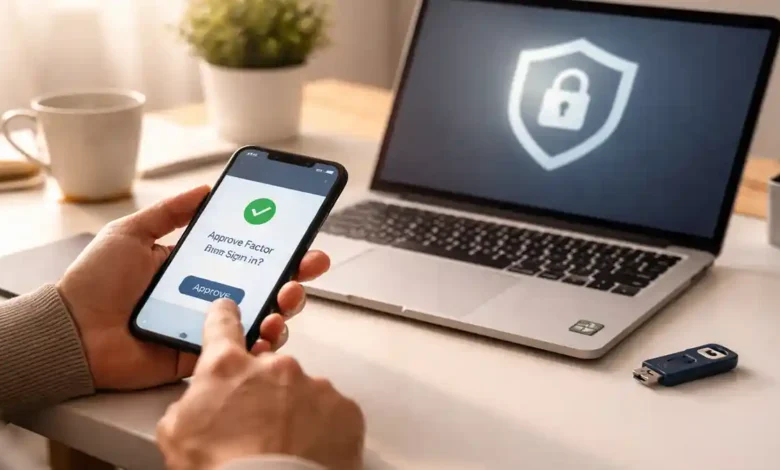
Protect your data online in 2026 and you’ll avoid more than “hacking horror stories.” You’ll avoid the quiet stuff that’s just as painful: account takeovers that lock you out of your own services, SIM-swap drama that drains your money, identity misuse that takes months to fix, and private photos or messages that get exposed because one device was stolen or one link was clicked.
Here’s the good news: modern online security is no longer about being a “tech genius.” It’s about building a few strong habits and choosing safer defaults so a single mistake doesn’t become a full disaster.
And the timing matters. Cybercrime keeps shifting toward identity and credential abuse basically, attackers prefer logging in as you instead of “breaking in” the old-fashioned way. In Verizon’s 2026 DBIR, stolen credentials show up heavily in common breach patterns like web app attacks. Microsoft also reports that the vast majority of identity attacks are still password-based meaning weak or reused passwords remain a huge risk.
So in this guide, we’ll build your protection in layers from your accounts to your devices to your backups using simple steps you can actually follow.
Protect Your Data Online in 2026: What’s Really Threatening You Now
Let’s quickly translate the “threat landscape” into real life:
1) Password and credential attacks (still the #1 problem)
Attackers steal passwords via phishing, data leaks, “infostealer” malware, or buying them on criminal markets. Then they try the same password across your email, bank, social accounts, and even your cloud storage. This is why password reuse is so dangerous.
2) Smarter phishing (including AI-driven scams)
Phishing used to be full of typos. Now it can look like a real HR email, a delivery message, a bank alert, or even a WhatsApp voice note from someone you know. The FBI has repeatedly highlighted phishing/spoofing among the top reported cybercrime types in its annual reporting.
3) Ransomware and data extortion
Even if you’re not a big company, ransomware can hit freelancers, small sites, and families. ENISA’s Threat Landscape reports consistently rank availability attacks and ransomware as major threats.
4) The “privacy leak” economy (data brokers + tracking)
A lot of “online risk” isn’t a hacker it’s everyday tracking, data selling, and oversharing. That data can later power scams, stalking, impersonation, and targeted phishing.
5) Bigger costs when things go wrong
Even if you’re not running a giant company, the trend shows why prevention is worth it. IBM’s reporting has shown average breach costs rising into the millions globally (for organizations).
For individuals, the “cost” is often time, stress, locked accounts, reputational damage, and sometimes direct financial loss.
The Core Strategy: Use Layers (So One Mistake Doesn’t End You)
Think of your digital life like a house:
- Locks = strong login (passkeys + MFA)
- Alarm system = alerts, monitoring, recovery options
- Safe = encryption + private storage choices
- Fire extinguisher = backups + restore plan
- Good neighbors = smarter habits and fewer risky clicks
If you do only one thing from this article: secure your email and phone number first. They’re the “master keys” that reset everything else.
Step 1: Secure Your #1 Account First (Email)
Your email inbox is the password reset machine for your entire life.
Do this today (seriously):
- Turn on phishing-resistant MFA where possible (more on that below).
- Review account recovery options (remove old numbers/emails you don’t control).
- Turn on security alerts (new device sign-in, password changes).
- Check forwarding rules (attackers sometimes add secret forwarding so they keep getting your emails).
- Separate emails by purpose (optional but powerful):
- One email for banking/critical accounts
- One for social/media
- One for newsletter shopping and signups
This reduces damage if one address gets targeted.
Step 2: Upgrade Passwords the Modern Way (Password Manager Best Practices)
If you’re still trying to “remember” passwords, you’re forced into weak patterns (reuse, variations, predictable phrases). A password manager fixes that.
Password manager best practices (simple rules)
- Use a long master password (a memorable sentence is fine).
- Turn on biometrics (Face ID/fingerprint) and keep the master password safe.
- Replace reused passwords first:
- Banking/payment apps
- Apple/Google/Microsoft account
- Social accounts
- Cloud storage
What “strong” really means in 2026
- Unique for every site
- Long (16+ characters if password-based)
- Random (generated, not “Summer2026!”)
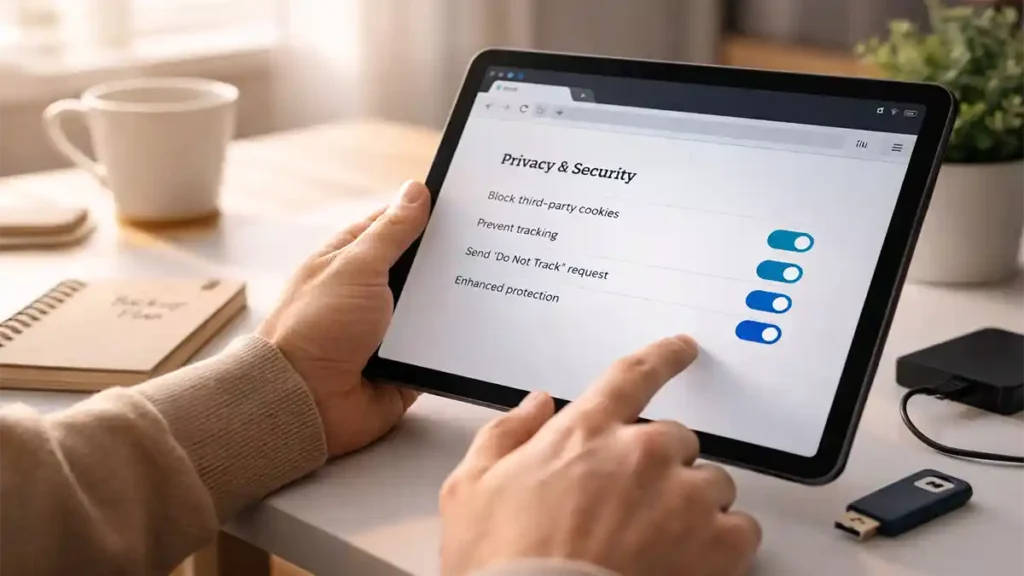
Step 3: Move Beyond Passwords With Passkeys and Phishing-Resistant MFA
This is one of the biggest security upgrades normal people can actually benefit from.
What is a passkey?
A passkey is a modern login method (often using your phone’s secure chip + biometrics) that’s designed to stop phishing. Adoption has been growing fast across major platforms, with large-scale support and usage reported by industry groups and big providers.
Why passkeys matter
Phishing works by tricking you into typing a password (and sometimes a one-time code) into a fake site. Passkeys don’t work that way they are tied to the real website/app and don’t get “typed in.”
“MFA” is not all equal (important)
- Best: Passkeys / security keys (FIDO) = phishing-resistant
- Good: Authenticator app codes (TOTP)
- Risky: SMS codes (SIM swap, interception, social engineering)
NIST explicitly notes that OTP-based methods that require manual entry are not considered phishing-resistant.
CISA guidance also emphasizes stronger approaches like FIDO for authentication in modern mobile/security best practices.
Practical move for 2026
For your most important accounts (email, Apple/Google, banking, socials):
- Enable passkeys if offered
- If not, enable authenticator app MFA
- Avoid SMS as a fallback if you can remove it safely
Step 4: Stop Phishing and Social Engineering (Without Becoming Paranoid)
You don’t need fear you need a system.
The 10-second “phishing filter”
Before you click or reply, ask:
- What is this asking me to do? (log in, pay, reset, download?)
- Can I verify in another way? (open the app yourself, type the site manually)
- Is there urgency + emotion? (“Account will be closed in 1 hour!”)
- Is the address slightly wrong? (tiny domain tricks)
Safe habit that blocks most scams
If you get a message saying “Your account has an issue”:
- Do not use the link.
- Open the app/site yourself from your bookmarks or by typing it.
Watch for the “new” scams
- Fake customer support on social media
- QR code traps in public places
- Deepfake audio/video (“I need money now, please”)
Step 5: Lock Down Your Phone (Because Your Phone Is Your Identity)
In 2026, losing your phone can be worse than losing your wallet.
Phone protection checklist
- Use a strong device passcode (not 0000 / 1234 / birthday)
- Enable Find My iPhone / Find My Device
- Turn on automatic OS updates
- Review app permissions (location, contacts, microphone)
- Disable lock screen previews for sensitive notifications (OTP codes, banking alerts)
- Use an eSIM PIN / carrier account PIN where available (helps reduce SIM-swap risk)
CISA and other security guidance increasingly emphasizes modern authentication and safer mobile practices because mobile identity is a prime target.
Step 6: Secure Your Home Wi-Fi and Router (Fast Wins)
You don’t need enterprise gear just a clean setup.
Do these router steps
- Change the default admin password
- Use WPA3 (or WPA2 if WPA3 isn’t available)
- Rename Wi-Fi (don’t include your full name or address)
- Turn off WPS
- Keep router firmware updated
Bonus (if you want extra privacy)
Use a reputable DNS provider that blocks known malicious domains (many routers support this).
Step 7: Safer Browsing and Tracking Reduction (Privacy That Also Improves Security)
Privacy and security overlap more than most people think.
Browser habits that protect data
- Use one modern browser and keep it updated
- Install only essential extensions (extensions can be a data leak)
- Don’t save passwords in random browser popups if you already use a password manager
- Use separate browser profiles:
- Personal (email, banking)
- Work/publishing (WordPress, analytics, ad platforms)
- Testing (random browsing)
Reduce tracking and data collection
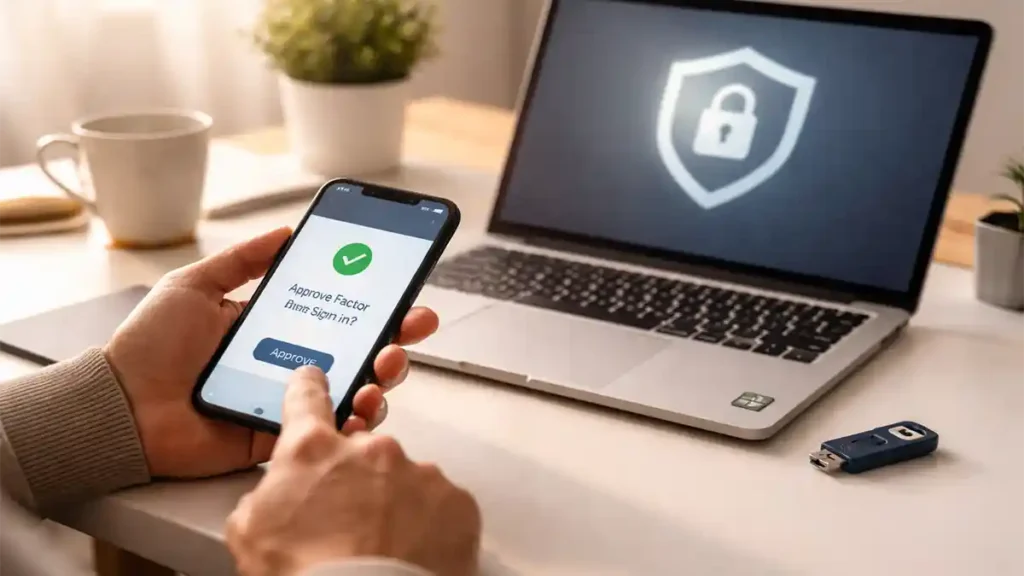
- Block third-party cookies (or use stricter tracking protection)
- Turn off ad personalization where possible
- Clean up old accounts you no longer use
Step 8: Use End-to-End Encryption Where It Matters
End-to-end encryption means only the people in the conversation can read the message not the platform in between.
Where this matters most:
- Private conversations
- Sharing documents/IDs
- Family photos
- Business discussions
Also think about how you share files:
- Use expiring links when possible
- Don’t leave “Anyone with the link can view” enabled forever
Step 9: Backups That Actually Save You (Secure Cloud Backups + 3-2-1 Rule)
A backup you’ve never tested is a “hope,” not a backup.
The 3-2-1 backup rule (simple version)
- 3 copies of important data
- 2 different types of storage (cloud + external drive)
- 1 offline copy (external drive not always connected)
What to back up (most people forget this)
- Photos/videos
- Documents (IDs, certificates)
- Password manager recovery options
- 2FA backup codes
- Your website content (if you run WordPress, export + backup database/media)
Quick test (takes 5 minutes)
Try restoring one file from your backup today. If it’s confusing, fix the system now not after disaster.
Step 10: Control Your Public Exposure (Data Broker Removal and Privacy Settings)
A lot of attacks start with information that’s already “out there”:
- phone number
- address history
- relatives’ names
- workplace
- social handles
Practical privacy steps
- Make social accounts private (or at least limit who can message you)
- Remove public birthday and phone number
- Limit who can see your friend/follow list
- Consider opting out of major people-search / data broker sites (varies by country and site)
This won’t stop every threat but it reduces targeted scams dramatically.
Step 11: Protect Payments and Banking
Money-related fraud often follows the same pattern: panic + speed + misplaced trust.
Use safer payment habits
- Turn on transaction alerts
- Use virtual cards if your bank supports them
- Avoid saving cards on low-trust websites
- Treat “refund” and “overpayment” messages as suspicious
Golden rule
If anyone pressures you to act immediately, slow down. Real banks and real companies will allow verification through official channels.
A Simple 30-Minute Action Plan (Do This First)
If you want maximum protection fast, do these in order:
- Secure your email (passkey/MFA + recovery review)
- Install a password manager and change reused passwords
- Enable passkeys on major accounts that support them
- Turn on device tracking (Find My) and lock screen privacy
- Set up backups (cloud + one offline copy)
That’s it. Those five steps eliminate the most common “single point of failure” disasters.
Real-World Scenarios (So You Know What to Do When It Happens)
Scenario A: “Suspicious login detected” email arrives
Do: Open the official app/site yourself → check security page → change password → review devices
Don’t: Click the email link unless you’re 100% sure
Scenario B: Your SIM suddenly stops working
This can be SIM swap.
Do: Contact carrier immediately, lock number, reset email passwords, review bank access
Then: Remove SMS as a recovery option where possible
Scenario C: Your WordPress admin gets targeted (site owners)
Do: Use a password manager + passkey/MFA, limit admin accounts, keep plugins updated, daily backups
Credential theft is a major driver in many attack paths and breach patterns in modern reporting.
Conclusion: Security in 2026 Is About Defaults, Not Perfection
To protect your data online in 2026, you don’t need to “never make mistakes.” You need a setup where one mistake doesn’t ruin everything.
If you remember just three upgrades:
- Passkeys or phishing-resistant MFA whenever possible
- Password manager + unique passwords everywhere
- Real backups you can restore
The internet is not getting calmer. But with these layers, it becomes much harder for anyone to turn your digital life into their opportunity.


3 Comments