Best Free Apps 2026: Must-Have Tools for Everyone
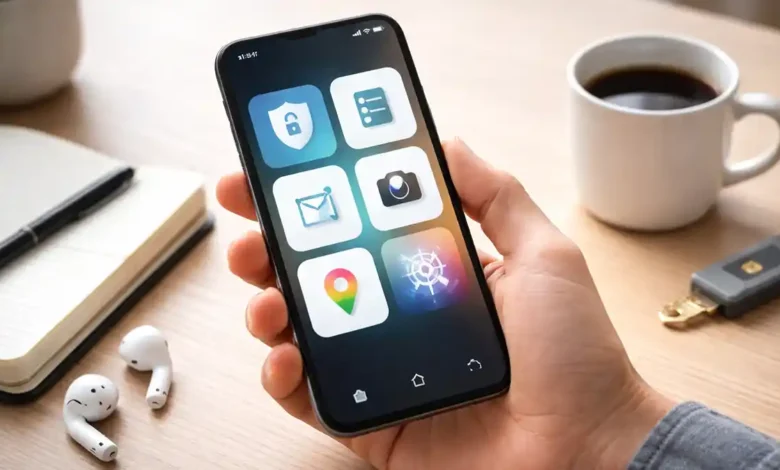
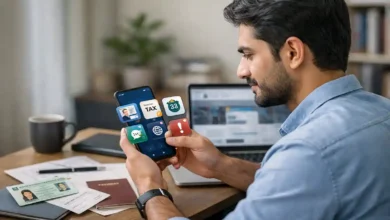
Best free apps 2026 isn’t just a popular search phrase it’s a real-life shortcut. Your phone now handles work, banking, travel, family communication, photos, learning, and private accounts. The problem is that the app stores are crowded with “almost free” tools that push subscriptions, show aggressive ads, or collect more data than you expect.
This guide solves that.
You’re about to get a modern, practical list of 25 free apps (or genuinely useful free tiers) that most people can benefit from in 2026. I’ll explain what each tool does best, how to use it without clutter, and what to watch out for so your phone feels faster, safer, and more intentional.
What you’ll learn
- Which free apps are truly worth installing in 2026
- How to build a clean “starter pack” without app overload
- Quick settings that improve security and reduce distractions
- When a free app is enough, and when it’s basically a trial
What “free” really means in 2026 (in plain English)
A free app usually fits one of these models:
- Fully free: no payment required, minimal upsells
- Freemium: core features are free; advanced tools are paid
- Ad-supported: free to use, but you pay with attention
- Data-supported: free because your usage data is valuable
- Trial-style free: looks free, but key features are locked quickly
There’s nothing automatically “bad” about freemium apps. The goal is to choose apps where the free version is genuinely useful and doesn’t pressure you every day.
How I chose these apps (so the list stays practical)
Every app here earns its place with at least most of these qualities:
- The free tier solves a real problem, not just a teaser
- It’s useful for a broad audience (not niche-only)
- It’s stable, trusted, and widely used
- It has clear value with reasonable privacy choices
- It reduces friction instead of adding more work
The 10-minute “Starter Pack” (install these first)
If you want the biggest impact with the fewest apps, start with this core set:
- Password manager: Bitwarden
- 2FA/authentication: Microsoft Authenticator (or Google Authenticator)
- Private messaging: Signal
- Notes: Google Keep (or Apple Notes)
- Tasks: Todoist
- Docs + files: Google Drive or OneDrive
- Scan PDFs: Microsoft Lens
- Photos backup: Google Photos (or iCloud Photos)
- Maps: Google Maps
- Translate: Google Translate
That’s enough to cover security, organization, files, and everyday utilities without clutter.
The Best Free Apps 2026 (25 Must-Have Tools)
Category 1: Security & privacy essentials (don’t skip these)
(1) Bitwarden (Password Manager)
Best for: strong, unique passwords everywhere
Why it matters: reusing passwords is still one of the easiest ways to lose accounts. A password manager fixes that with one habit: generate and save unique passwords.
Use it well
- Turn on biometric unlock (Face ID / fingerprint)
- Add your email, Apple/Google, and banking first
- Save backup codes inside the vault
(2) Microsoft Authenticator (Two-Factor Authentication)
Best for: securing logins beyond passwords
Why it matters: even a strong password can be stolen. Two-factor authentication adds a second layer.
Tip: use the app for your most important accounts first: email, social media, cloud storage, payments.
(3) Google Authenticator (Simple alternative)
Best for: a lightweight authenticator option
Why it’s useful: it’s quick, widely supported, and easy for non-tech users.
(4) Signal (Private Messaging)
Best for: privacy-focused messaging and calls
Why it’s a must-have: it’s a clean option for sensitive conversations, document sharing, or simply keeping a portion of your messages outside ad-driven ecosystems.
Smart setup
- Enable disappearing messages for sensitive chats
- Turn off link previews if you want extra privacy
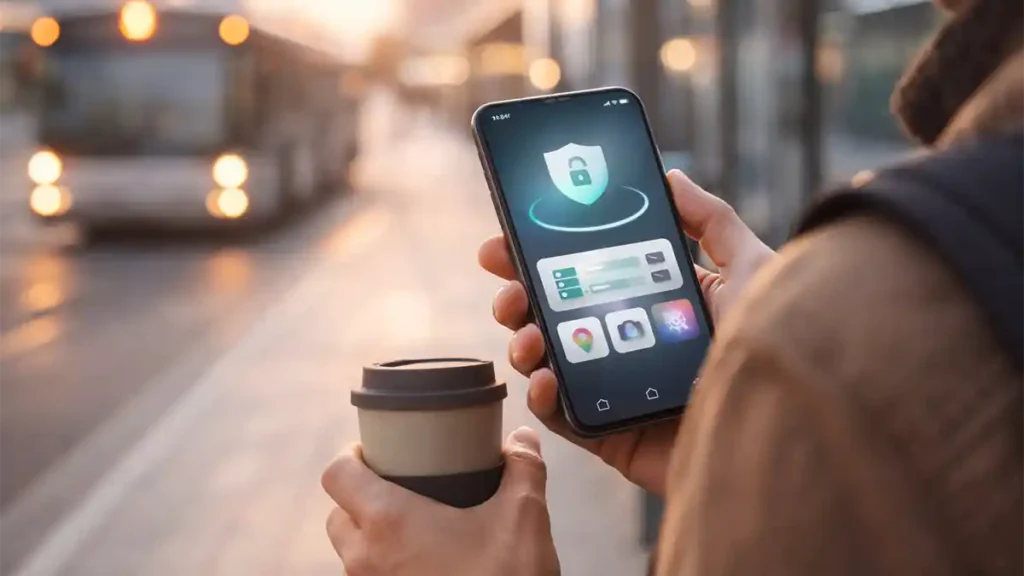
(5) Proton VPN (Free plan)
Best for: safer browsing on public Wi-Fi
Why it matters: cafés, airports, and hotels are convenient but public Wi-Fi can be risky. A VPN helps protect your traffic from basic snooping.
Note: free plans may limit locations or speed. Still useful for travel basics.
(6) Cloudflare WARP (1.1.1.1)
Best for: one-tap network protection and speed stability
Why it’s useful: it’s not a full VPN replacement for every case, but it can improve network privacy and reliability for everyday use.
Category 2: Communication & daily coordination
(7) WhatsApp (with privacy settings tightened)
Best for: staying connected with everyone
Why it’s here: it’s often the default messaging app globally. Used thoughtfully, it can be convenient without feeling exposed.
Do this right away
- Enable two-step verification
- Review privacy settings (photo, last seen, groups)
- Reduce noisy notifications (mute large groups)
(8) Telegram (Free)
Best for: large communities, channels, file sharing
Why it’s useful: great for group updates, broadcasts, and saving useful channels.
Tip: keep it for communities and public content, and use more privacy-focused tools for sensitive chats.

Category 3: Notes, tasks, and productivity that stays simple
(9) Google Keep (Notes)
Best for: fast capture notes, lists, voice notes
Why it works: it’s lightweight. The best note app is the one you’ll actually open instantly.
Best use cases



- grocery list
- content ideas
- quick reminders
- simple checklists
(10) Apple Notes (iPhone essential)
Best for: clean notes with great device integration
Why it matters: it’s already on your phone, fast, and strong for everyday organization especially if you’re in the Apple ecosystem.
(11) Todoist (Tasks)
Best for: staying organized without complexity
Why it’s a winner: it feels professional but doesn’t force heavy project management.
Simple structure that works
- Today
- This Week
- Someday
If your task app becomes a second job, simplify.
(12) Notion (Free plan)
Best for: personal knowledge base, content planning, “everything hub”
Why it’s useful: great for creators, students, and anyone who likes structured pages.
Use it smart
- Keep it focused: one dashboard + 2–3 pages you actually use
- Don’t rebuild your whole life inside it in week one
(13) Google Calendar (Scheduling)
Best for: time-blocking and reminders
Why it matters: tasks live in your mind; schedules live in your calendar. Calendar makes your week real.
High-impact habit
- schedule your admin tasks: renewals, bills, calls, publishing, workouts
(14) Microsoft Outlook (Free)
Best for: email + calendar in one app
Why it’s here: useful if you manage multiple email accounts or want a focused email experience.
Category 4: Files, documents, and scanning
(15) Google Drive (Cloud storage + docs)
Best for: backing up files and collaborating
Why it’s essential: it keeps your documents searchable and shareable.
Tip: create three folders only:
- Personal
- Work/School
- Receipts & Documents
(16) Microsoft OneDrive (Free)
Best for: seamless Windows + Office workflows
Why it’s useful: strong integration for many people who live in Microsoft ecosystems.
(17) Microsoft Lens (Scanner)
Best for: scanning papers into clean PDFs
Why it’s a must-have: it’s the simplest way to digitize IDs, receipts, contracts, notes, and forms.
Pro move: save scans directly to Drive/OneDrive and name them immediately.
(18) Adobe Acrobat Reader (Free)
Best for: viewing and signing PDFs (basic)
Why it’s useful: many official forms still arrive as PDFs. Acrobat is reliable for viewing and simple markup.
Category 5: Photos, design, and video (creator-friendly, beginner-safe)
(19) Google Photos (Backup + search)
Best for: photo backup, organization, quick sharing
Why it’s essential: losing photos is painful. Backups are non-negotiable in 2026.
Tip: review backup settings and storage quality options so you know what you’re getting.
(20) Snapseed (Photo editing)
Best for: clean, professional edits without a learning curve
Why it’s great: it can make phone photos look “edited” without looking fake.
Go-to tools
- Tune Image
- Selective adjustment
- Details (use gently)
(21) Canva (Free plan)
Best for: thumbnails, social graphics, simple brand design
Why it’s on this list: Canva is the easiest way to design modern visuals quickly.
Perfect for
- blog featured images
- YouTube thumbnails
- Pinterest pins
- quote cards
(22) CapCut (Free plan)
Best for: fast mobile video editing
Why it’s useful: it’s beginner-friendly and quick for short-form content.
Tip: always review export settings and remove any auto-added effects before publishing.
Category 6: AI helpers (useful when used responsibly)
(23) ChatGPT (Free tier)
Best for: drafting, summarizing, brainstorming, learning explanations
Why it’s useful: it turns a blank page into a first draft and helps you think faster.
Use it for
- rewriting a paragraph for clarity
- outlining an article
- turning notes into a structured plan
- simplifying complex topics
Avoid using it for
- sensitive personal documents
- passwords, OTPs, IDs
- medical/legal/financial decisions without verification
(24) Google Gemini (Free tier)
Best for: everyday help, integrated workflows (depending on device and region)
Why it’s helpful: strong for quick answers, drafting, and productivity-style tasks.
Category 7: Travel, navigation, and daily utilities
(25) Google Maps
Best for: navigation, discovering places, saved lists
Why it’s essential: it’s the most used “daily life” app for many people work commutes, restaurants, planning, travel.
Pro tip: create lists like:
- Saved Food
- Weekend Spots
- Work Locations
Bonus utilities (if you want a slightly bigger toolkit)
If you can add a few more without clutter, these are great options depending on your lifestyle:
- Google Translate (travel, menus, quick understanding)
- Spotify (Free plan for music/podcasts, ad-supported)
- Libby (free library ebooks/audiobooks, if your library supports it)
- VLC (plays almost any video format)
If you install these, remove something you don’t use keep your phone intentional.
The “Free App” Trap (and how to avoid it)
Some free apps cost you indirectly through:
- constant upsells and subscriptions
- heavy ads and notifications
- excessive permissions
- unnecessary accounts and tracking
Before you install any app, ask these 4 questions
- Do I already have a built-in app that does this?
- Does it ask for contacts/location access? If yes, is that required?
- Can I use it without creating an account?
- Will I still use it in 30 days?
If you can’t answer confidently, skip it.
The 2026 phone clean-up checklist (10 minutes)
Do this once and you’ll feel the difference immediately:
- Delete apps you haven’t used in 60 days
- Turn off non-essential notifications (most apps don’t deserve them)
- Use a password manager and stop reusing passwords
- Turn on two-factor authentication for email and social accounts
- Use passkeys where available (if your device supports them)
- Keep one browser for secure logins and one for casual browsing
- Set a weekly 5-minute “phone cleanup” reminder
Quick FAQ
(1) Are free apps really free in 2026?
Many are free to install, but may earn money via ads, subscriptions, or data. Always check permissions and pricing screens.
(2) What’s the most important free security app to install first?
A password manager. It prevents password reuse and makes strong passwords effortless.
(3) Do I really need two-factor authentication?
Yes. It adds a powerful extra layer even if your password is stolen.
(4) Which free productivity app gives the biggest impact fastest?
A calendar (for scheduling) plus a simple task app (for daily actions).
(5) Is Notion too complicated for most people?
It can be unless you keep it simple: one dashboard and a few pages you actually use.
(6) What’s the safest way to use free AI apps?
Use them for drafts, summaries, and brainstorming avoid sharing sensitive personal data.
(7) How do I avoid subscription traps?
Prefer apps with useful free tiers, disable unnecessary notifications, and check subscriptions monthly.
(8) How many apps should a clean phone have?
Enough to cover your needs most people do well with a focused set rather than endless downloads.
Conclusion
The best free apps in 2026 aren’t the ones with the loudest marketing they’re the ones that quietly make your day smoother. The smartest approach is a small, intentional app stack:
- Security first (passwords + two-factor authentication)
- Productivity that stays simple (notes, tasks, calendar)
- File tools that reduce chaos (cloud storage + scanner)
- Creative tools that help you publish (photos, design, video)
- AI for drafts and ideas (with common-sense privacy)
- Navigation that saves time (maps + travel utilities)
If you build your phone around these principles, you’ll spend less time managing apps and more time actually using your tech to improve your life.
3 Comments